
This guide comprehensively explains HEXA's features, including how to buy NFTs and resell them, withdraw them to your wallet, and display them in a metaverse space. On HEXA, you can buy and store NFTs with just a smartphone or PC and a credit card, without needing crypto or a wallet.
Contents
- How to find NFTs
- Information on the NFT page
- How to buy by sale format
- Paying with NFT purchase tickets
- Checking and reselling the NFTs you bought
- About the user page
- How to display NFTs in the HEXA LAND metaverse
- How to display NFTs in the HEXA Residents metaverse
- Setting avatar NFTs in HEXA Metaverse
- Setting area NFTs in the HEXA LAND metaverse
- How to use the community feature
- About ad-space NFTs (HEXA LAND NFTs)
- How to withdraw to your wallet (advanced)
How to find NFTs
1) Find NFTs by item
On the official HEXA website, click the “Find NFTs” button on the top page or in the header menu.

A list of NFT items will then appear. Using ① the filter on the left of the screen (on smartphones, the filter button at the bottom right), you can narrow down by NFT format, such as images/illustrations, tweets, video and music, or by sale method (auction, first-come, first-served sale, lottery sale). You can also use ② the sort drop-down box at the top right to sort by price or by most recently sold. You can also search by entering keywords.

2) Find by creator
By selecting the “Find by Creator” tab, you can browse by the creators who issue NFT items.
① Filter (on smartphones, the filter button at the bottom right): You can narrow down by whether a creator has items on sale, whether they have a sales record, and so on.
② Sort drop-down box: You can sort creators by, for example, the most sales in the past month or the most recent sales.
You can also search by entering keywords.

3) Find from a creator's collection page
On a creator's collection page, you can see all the NFTs that creator issues. If the creator has divided their NFTs into collections, you can filter NFTs by collection name using the tabs at the top.
① Finalized collections: Light-blue collections are finalized collections, meaning all of their NFTs have been issued.
② Unfinalized collections: Unfinalized collections are shown in orange. These are collections the creator has not yet finalized, for example because not all of the planned NFTs have been issued.
③ Collection information: For finalized collections, statistics are shown: number of trades, number of owners, trading volume, highest price, floor price, number on sale and number issued.

4) Find by tag
Some NFT pages have tags linked to the NFT at the bottom right. Clicking a tag shows a list of NFTs related to that tag.

Information on the NFT page
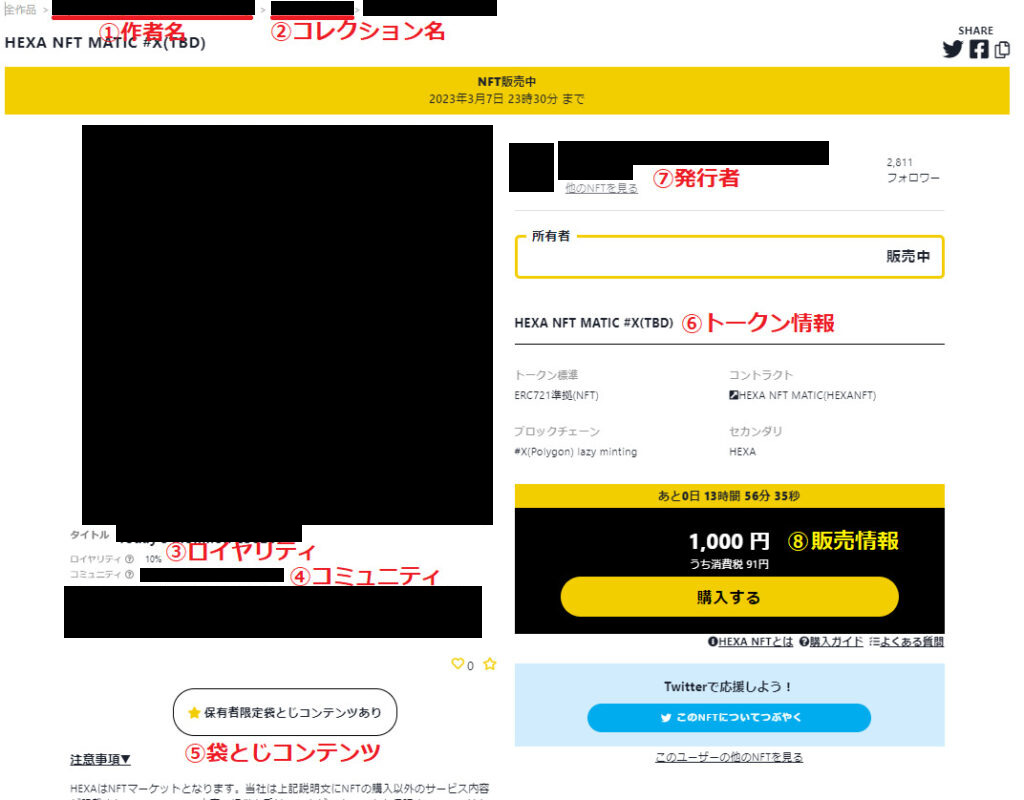
The NFT page shows information about the NFT. The explanation below uses the page of an NFT in its primary sale as an example.
① Creator name, ② Collection name: The collection name is shown if one has been set. Click ① to see the list of works by the creator who issued the NFT, or ② to see the page of the collection the NFT belongs to.
③ Royalty: Shows the reward paid to the creator on an ongoing basis every time the NFT is resold (resale price × royalty rate).
④ Community: A link to the community you can join by buying the NFT. Only NFT holders and the issuer take part in the community and can communicate with each other (however, the issuer may later remove the NFT from eligibility or create a new community).
⑤ Holder-only content: Indicates that there is a message or content that only NFT buyers can see. The contents can only be viewed after purchase. Note that you will no longer be able to see it once you resell the NFT.
⑥ Token information: Shows the NFT's information on the blockchain. On HEXA, the NFT is issued on the blockchain when it is first purchased. The NFT is issued after purchase even if the buyer does not have a wallet (on some NFT marketplaces, NFTs are not issued until you withdraw them, but on HEXA the NFT is issued on the blockchain at the primary purchase). Issued NFTs are held by HEXA, but you can withdraw them to your own wallet at any time free of charge.
⑦ Issuer information: Unless the issuer has left X (formerly Twitter), this links to the issuer's X account, so you can check on X who is issuing the NFT. We recommend that buyers check the information about the NFT's issuer themselves before buying.
⑧ Sale information: Shows the actual sale price. For a first-come, first-served sale, you can buy directly with the buy button. Because NFTs are classified as sales of data, consumption tax applies. The displayed sale price therefore includes consumption tax.
How to buy by sale format
1) First-come, first-served sale
First, go to the sale page of the NFT you want to buy and click “Buy.” Then log in (or sign up if you don't have an account), set the name to display in the holder field, and choose whether to link to your profile page. Rest assured that your email address will be used only for communications from HEXA and will never be made public.
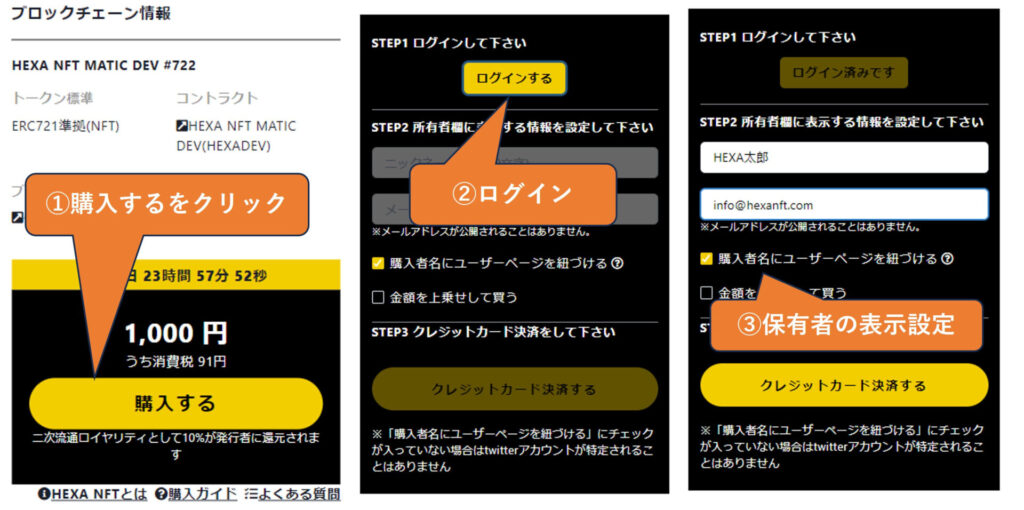
Next, click “Pay by Credit Card.” You will be taken to the credit card company's payment screen. A 3-D Secure authentication screen may then appear if required (the screen differs by card company). If it does, enter your 3-D Secure password and submit to complete the purchase. Once the purchase is complete, the name you set will be shown as the holder. Purchases of ¥2 million or less are paid by credit card; purchases over ¥2 million are paid by bank transfer.


2) Lottery sale
Click “Reserve Purchase” on the NFT lottery sale page to proceed to the purchase reservation.
Purchase reservation: You can freely choose the name displayed as the reservation name, and you can optionally link the reservation name to your user page. When you complete the purchase reservation by following the on-screen instructions, a confirmation email will be sent. Rest assured that your email address will be used only for communications from HEXA and will never be made public.
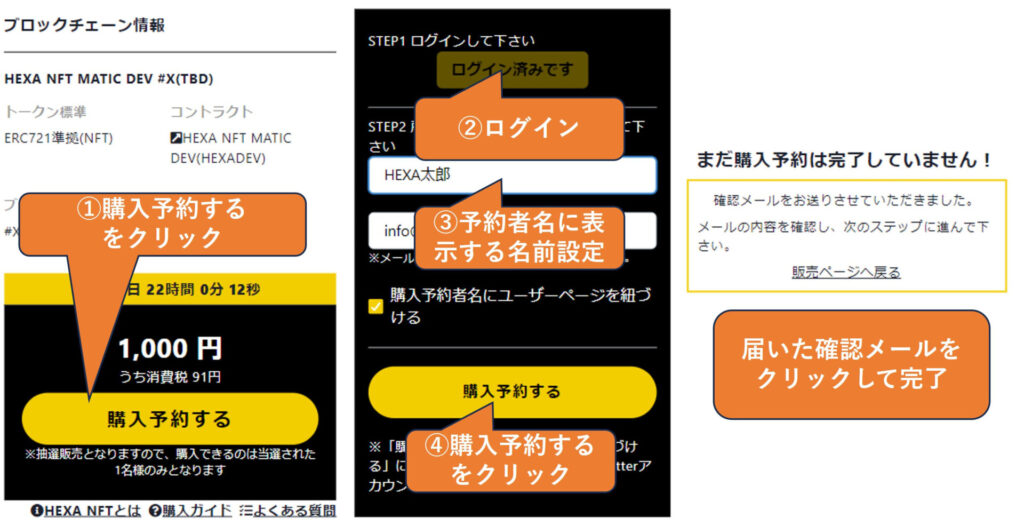
Email verification, SMS verification and confirming your purchase reservation: Clicking the link in the confirmation email verifies your email address and confirms your purchase reservation. SMS verification with your phone number is required the first time only. Once you confirm a purchase reservation, you cannot cancel it if you win the lottery.

Completing the purchase reservation and displaying the reservation name: Shortly after you complete the purchase reservation, your name, the time and your X link (if specified) will be displayed as a reservation holder. It takes about 1 minute for the completed reservation to appear on the page. The earlier you make a purchase reservation, the higher your name appears in the list of reservation holders.

Winning notification and payment: When the lottery sale period ends, the lottery results will be sent by email. If you win, follow the payment link in the email to the payment page and complete your payment. To pay by credit card, click “Pay by Credit Card.” You will be taken to the credit card company's payment screen. A 3-D Secure authentication screen may then appear if required (the screen differs by card company). If it does, enter your 3-D Secure password and submit to complete the purchase. Once the purchase is complete, the name you set will be shown as the holder. Purchases of ¥2 million or less are paid by credit card; purchases over ¥2 million are paid by bank transfer.
3) Auction sale
On the yen auction page, simply enter the amount you want to bid in yen and proceed to bid. You can bid at least ¥1,000 above the current price (when bids are placed simultaneously, your bid amount may be the same as someone else's; in that case, whoever completes the bid first takes priority).
Bidding in an auction: You can freely choose the name displayed as the bidder name, and you can optionally link the bidder name to your user page. When you complete the bid by following the on-screen instructions, a confirmation email will be sent. Rest assured that your email address will be used only for communications from HEXA and will never be made public.

Email verification and confirming your bid: Clicking the link in the confirmation email verifies your email address and takes you to the final confirmation page for your bid. Check the details of your bid one last time and confirm it. Once you confirm a bid, you cannot cancel it if you become the highest bidder.

SMS verification is required when bidding in an auction (first time only): SMS verification with your phone number is required to bid in an auction. Bids cannot be canceled after they are placed for any reason.

Completing your bid and displaying bidders: Shortly after you complete your bid, your name, price and a link to your user page (if specified) will be displayed as a bidder on the auction page. It takes about 1 minute for a completed bid to appear on the page.

Auction payment: When the auction ends, the URL of the payment page is emailed to the winning bidder (the person who bid the highest price earliest). Click the link and follow the on-screen instructions to complete your payment. Purchases of ¥2 million or less are paid by credit card; purchases over ¥2 million are paid by bank transfer.
4) Purchase by offer
For an NFT that has already been bought and has a holder who is not reselling it, you can approach the holder about buying it using the “Make an Offer” button. If the holder accepts your offer, you can buy the NFT at the amount you offered. Please note that once you make an offer, you cannot withdraw it.

5) Relisting request
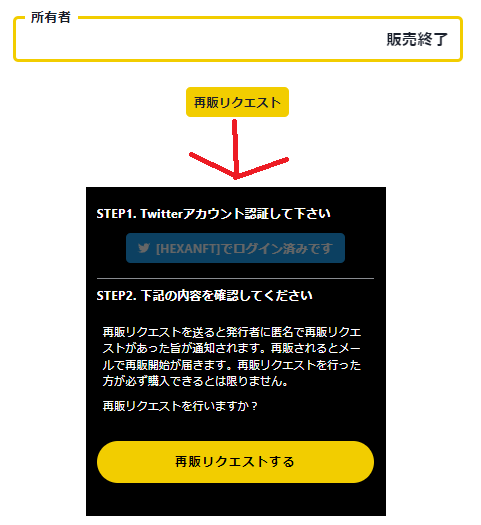
If you want to buy an NFT whose primary sale period has already ended without a buyer, you can send the issuer a “relisting request.” If the issuer reviews the request and relists the NFT, you will be notified by email that it has been relisted, and you can buy the NFT from there. Note that even if it is relisted, you cannot buy it if someone else buys it first (a relisting request does not guarantee that you will be able to buy the NFT even if it is relisted). We recommend buying as soon as you receive the relisting notification.
Paying with NFT purchase tickets
If you hold an NFT purchase ticket and the purchase price is no more than the value of the ticket, you can buy with the ticket.
You can use only one purchase ticket at a time. It also cannot be combined with a credit card, so it can only be used for NFTs whose price can be covered by a single purchase ticket. Purchase tickets can be used for first-come, first-served sales, lottery sales and auction sales.
Note that purchase tickets do not give change of less than ¥1,000 (if you use a ¥2,000 purchase ticket to buy something priced at ¥1,500, the ticket is used up. The ¥500 difference is treated as a top-up purchase only for first-come, first-served and lottery sales (auctions do not count as top-up purchases, and no change of less than ¥1,000 is given). If you use a ¥3,000 purchase ticket to buy something priced at ¥1,500, you receive a ¥1,000 purchase ticket as change.
You can check the purchase tickets you hold from My Page → Points & Tickets.

Checking and reselling the NFTs you bought
NFTs you buy are stored in your HEXA account. You can check the NFTs you hold by selecting My Page → Owned NFTs from the icon at the top right. You can also view holder-only content right after purchase by verifying your account. On the Owned NFTs page, you can also search and filter by title keywords and so on.

How to resell: You can resell NFTs at any time for Japanese yen or crypto (for crypto, wallet verification is required from My Page → Rewards) using the “Sell” button in My Page → Owned NFTs. Note that for a primary purchase, the NFT is issued within about 1 day of purchase and only then becomes available for resale, so it takes a little time.
Proof-of-ownership screen: Pressing the “Show” button in My Page → Owned NFTs displays the title of the NFT you hold, the NFT image, the holder name and the current time in real time (ticking by the second). By showing this screen on your smartphone, you can prove that you hold the NFT.

About the user page
From My Page → User Page, you can display a list of the NFTs you own. Other people can also view this page. Please note, therefore, that NFTs bought with the “Turn on link to user page” box unchecked will not be shown on your user page.
How to display NFTs in the HEXA LAND metaverse
If you hold a HEXA LAND NFT, you can set area NFTs and place NFTs on your own land. Each area has limits on the total size, number of polygons, number of objects and so on of the NFTs that can be placed. On HEXA LAND, you can also place all of the NFTs you have issued that have been sold. This makes it possible to create, for example, a creator land that exhibits all of your works, including past ones. Sold NFTs you issued are shown with their owner's name, which can also help increase the value of NFTs already sold. For details on the HEXA LAND metaverse, see here.
1) Use the HEXA LAND metaverse features
Once you have bought a HEXA LAND NFT, you can open the LAND you hold from the LAND list on the HEXA Metaverse page and place items there. For details on how to use it, see here.

How to display NFTs in the HEXA Residents metaverse
If you hold a HEXA Residents NFT, you can display the NFTs you hold in the HEXA Residents Room (metaverse space). For details on the Residents NFT, see here; to buy a Residents NFT, go here.

1) Use the HEXA Residents metaverse features
Once you have bought a Residents NFT, you can open “Edit” for your Residents room from the HEXA Metaverse page and place items there.
2) Lock your room (NFT keys are also possible)
If you hold at least one HEXA LAND NFT, you can lock your HEXA Residents room space. There are two types of lock: one that uses a passphrase and one that uses an NFT. Locking with an NFT also lets you sell things such as room entry ticket NFTs.
There are several types of Residents NFT. For details, please see the table below and this page.

Setting avatar NFTs in HEXA Metaverse
To use an avatar NFT you hold in HEXA Metaverse, go to “Settings” on the metaverse top page. After logging in to HEXA Metaverse, open the settings screen to set up your avatar NFT.
If you hold an avatar NFT that can be used as an avatar, you can load it as your avatar from “New Setting.” The setting names show the animation names set by the issuer, and you can click them to preview each animation. Using the actions on the right, you can then set which action each animation corresponds to.

About avatar NFTs that can be used as avatars
Avatar NFTs that can be used as avatars have a mark indicating an avatar NFT (see the image below) at the top left of the NFT data. Avatar NFTs with this mark can be used. Before buying, you can check how the avatar actually works in the HEXA Metaverse space using the “Check HEXA Metaverse Display” button.

Setting area NFTs in the HEXA LAND metaverse
If you hold a HEXA LAND NFT, you can freely set area NFTs on the land you hold within one large, connected HEXA LAND. Below is an example of a Metropolis HEXA LAND; area NFTs can be set for each SAND-size unit (a Metropolis is 6 × 6, i.e., 36 units).

How to use the community feature
For some NFTs, the issuer may have opened a holder-only community where they can make announcements exclusively to holders of the NFTs they issue and communicate with those holders.
From My Page → Community, you can see a list of the communities you belong to. In Community Settings, you can change your settings for using communities.
Name in the community: You can set the nickname shown when you post comments in the community.
Notification settings: You can choose whether to receive email notifications when the issuer starts a new topic. You can also choose whether to be notified at the top of the HEXA service when the community's issuer posts a comment.

About ad-space NFTs (HEXA LAND NFTs)
HEXA LAND NFTs are ad-space NFTs: ads are shown on almost every page of nft.hexanft.com according to each LAND's ad ratio. You can set this up from My Page → LAND Ad Space. If no ad has been set, the holder name and a link to the holder's LAND page are shown. HEXA LAND NFTs, which are ad-space NFTs, can be purchased here.
Just upload banners for PC and smartphone, set any link you like and submit your application. The review takes about 3 business days, after which your ad starts being shown.

How to withdraw to your wallet (advanced)
This section is for advanced users. If you are not familiar with MetaMask or wallets, you do not need to do any of these steps. Rest assured that you can resell and store NFTs within HEXA without withdrawing them.
You can also withdraw NFTs to your own wallet, such as MetaMask. Click “Withdraw” on My Page to withdraw. Please note that once you withdraw an NFT, gas fees will be required to deposit it back into HEXA for resale. Please also understand that we cannot provide any support on how to store or transfer NFTs after you have withdrawn them to your own wallet. You must manage withdrawn NFTs yourself, and please understand that we cannot provide any support after withdrawal, even if your NFTs are stolen through wallet phishing scams or the like.

HEXA NFTs you have bought can be kept as they are in your wallet. For how to view NFTs in MetaMask, see here.
